
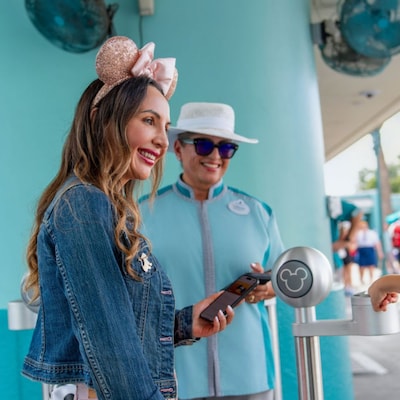
What is Disney MagicMobile Service?
Disney MagicMobile service is a feature of the My Disney Experience app. This app feature offers quick and easy access to select theme park and Disney Resort hotel amenities through an eligible iPhone, Apple Watch or Android phone.
Use Disney MagicMobile service to:

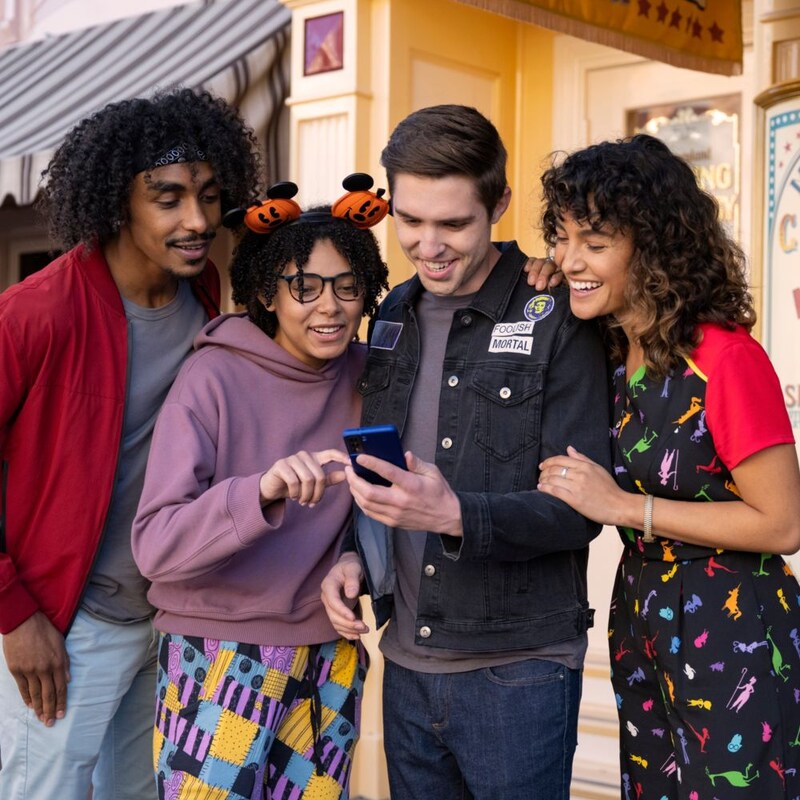
How to Set Up Disney MagicMobile Service

Step 1 - Link Tickets and More

Step 2 - Set Up Your Pass and Select a Style

Step 3 - Add It to Your Digital Wallet
You can also set up Disney MagicMobile passes for party members you manage in your Disney account. Follow the steps in the app to create digital passes for other members of your party or to link their passes to your device.
For Guests in your party that you do not manage, we recommend they create their own Disney MagicMobile pass on their device.
Using Disney MagicMobile Service
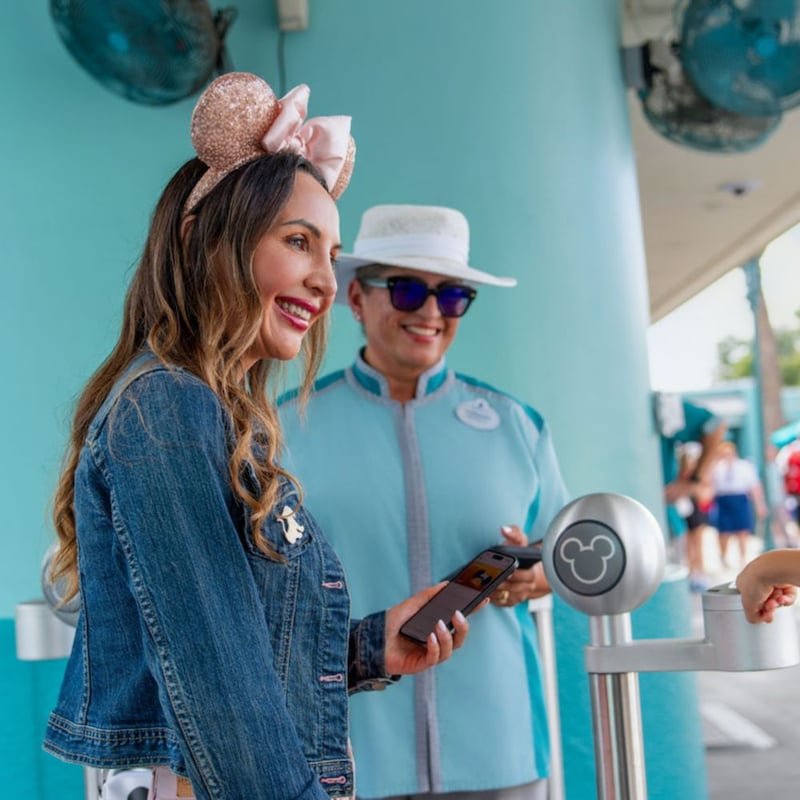
Once you arrive at the Main Entrance, tap your phone to the touch point. (Below, you’ll be able to choose the video for your device type that will demonstrate how to position your device.) If your device is positioned correctly—place your right index finger on the reader and watch for the green light—a check mark and the word “Done” will appear on its screen. If you have more than one Disney MagicMobile pass, swipe to the next pass and tap your phone to the touch point. Have the next member of your party place their right index finger on the reader and watch for the green light. Repeat for each member of your party.
- For Apple devices, Express Mode is enabled when you add a Disney MagicMobile pass to your Apple Wallet. This allows you to use your pass with a simple tap. You don’t have to open your digital wallet or even unlock your device. While in Express Mode, you can also swipe to passes of any members of your party who are present.
- For Android devices, you will need to unlock your device first to use your pass.
Follow the same steps to check in at virtual queue and Lightning Lane entrances (separate valid Lightning Lane entry required). You’ll find a touch point at these attraction entrances.
Select your device type below to watch a video about using Disney MagicMobile service in our theme parks.
Apple Devices
Android Devices
Frequently Asked Questions
- Answer<p>If you lose your mobile phone or smart device, please go to Guest Relations for assistance.</p>
- Answer<p>Yes. You can use a MagicBand, a MagicBand+, a Disney MagicMobile pass or a card during your visit. Just choose whichever works best in the moment.</p><p><a href="/guest-services/magicband-plus/">Compare features of MagicBands and MagicMobile.</a></p>
- Answer<p>If you have an iPhone and want to save time at the gate, you can share your Disney MagicMobile pass through Apple iMessage with your Managed Guests who have an iPhone. Please note that each Disney MagicMobile pass is unique to the Guest it was created for—no other Guests may use the benefits associated with someone else's pass even if it is shared between Apple devices. Anyone that receives your MagicMobile pass may be able to access its entitlements intead of you, so only share with people you trust. Tickets are nonrefundable, nontransferable and must be used by the same person on all days.</p><p>This sharing feature is not currently supported on Android devices using Google Wallet.</p>
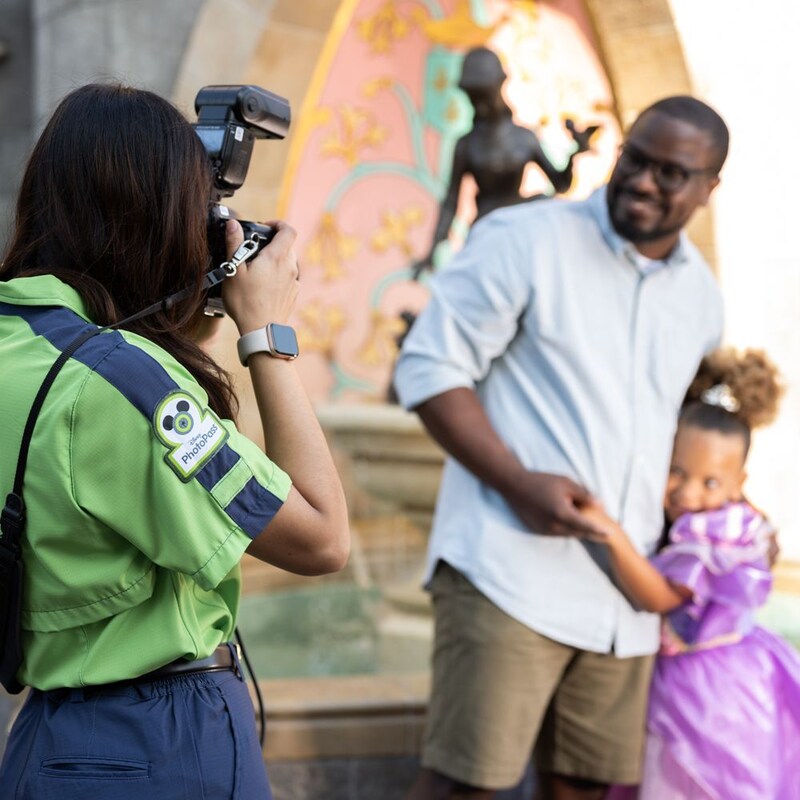
- Answer<p>When you use Disney MagicMobile pass on your mobile device, you can connect Disney PhotoPass images to your Disney account by presenting your Disney MagicMobile pass to Disney PhotoPass Photographers around Walt Disney World Resort.</p><p>To connect with in-park experiences and to automatically link attraction images using wireless technology, be sure to use a mobile device with Bluetooth® technology enabled in the My Disney Experience app. Your mobile device cannot be in low power mode while you are on board attractions. Please note that a smart watch can’t be used to automatically link attraction images and videos.</p>
- Answer<p>If you are a Disney Resort hotel Guest you can use your Disney MagicMobile pass to charge food and merchandise purchases to the payment card on file at your Disney Resort hotel room during your stay. If you are not staying at a Disney Resort hotel, you cannot use Disney MagicMobile to make purchases.</p>
Apple, the Apple logo, Apple Watch, Apple Wallet and iPhone, are trademarks of Apple Inc., registered in the U.S. and other countries. Android and Google Wallet are trademarks of Google Inc.